
Guide › Getting started
Join your team's hub
Open the link a teammate shares, pair your Mac with a code from your own Slack account, and Pace answers you from your Mac.
When your team runs a Pacenote hub, the hub holds the Slack app, so you create none. Pace still answers only you, with your own login, from your Mac.
What you need
- Pacenote on an Apple silicon Mac where Claude Code or Codex is signed in. New to it? Start with From install to Pace's first answer.
- The link a teammate shared, or the hub's address.
- If the hub lets only listed members use it, your Slack account on that list.
1. Open the link
Open the link and choose Open in Pacenote. Settings > Messengers > Slack opens with the hub filled in, or setup's Slack step while you set Pacenote up. Nothing changes until you connect.
Without a link, choose Join your team's hub in setup, or Team hub in Settings > Messengers > Slack, and enter the address.
2. Connect and send the code
Choose Connect (in setup, Get a pairing code). Pacenote shows a code: mention @Pace connect <code> in any channel Pace is in. The code expires in 10 minutes.
3. Confirm it is you
Pacenote shows the Slack account that sent the code. If it is yours, confirm. Pairing counts only once you confirm, so a code someone else saw and sent first is turned down.
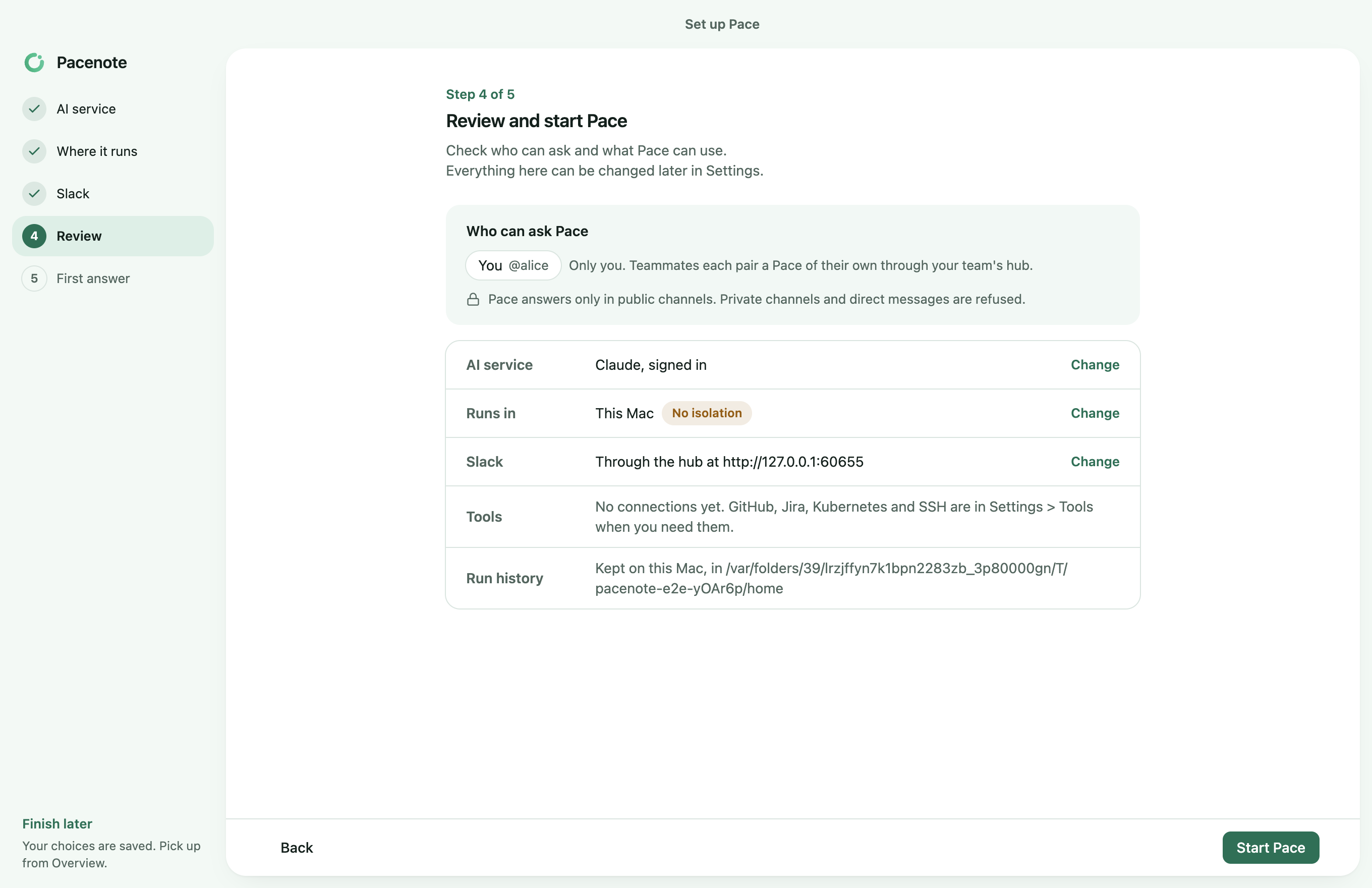
Then mention @Pace in Slack: Pace answers from your Mac. Once paired, Copy share link in Settings > Messengers gives you the link for the next teammate.
If it gets stuck
The code expired
Connect again for a new one.
The address is turned down
A public address needs https. Plain http works only on your own network: a private address, or a name that exists only there.
The hub does not answer
A hub on your company's network answers only where your Mac can reach that network, such as over its VPN.