
Guide › Getting started
Install and first run
Install Pacenote with Homebrew, gather what is asked of you in three steps, and set up Pace when you want it.
What you need
- An Apple silicon Mac on macOS 12 or later. The built-in sandbox needs macOS 15.
- Claude Code on a Claude Pro, Max, Team or Enterprise plan, or Codex 0.138 or later on ChatGPT Plus, Pro or Business, signed in on that Mac.
- A Slack workspace where you can create an app, or your team's Pacenote hub.
Install
Homebrew loads casks only from taps you trust, so the tap comes first, then the trust, then the install.
brew tap ashon/tap
brew trust ashon/tap
brew install --cask pacenoteFirst run
Open Pacenote. A new install opens on three steps, with no Slack app to make:
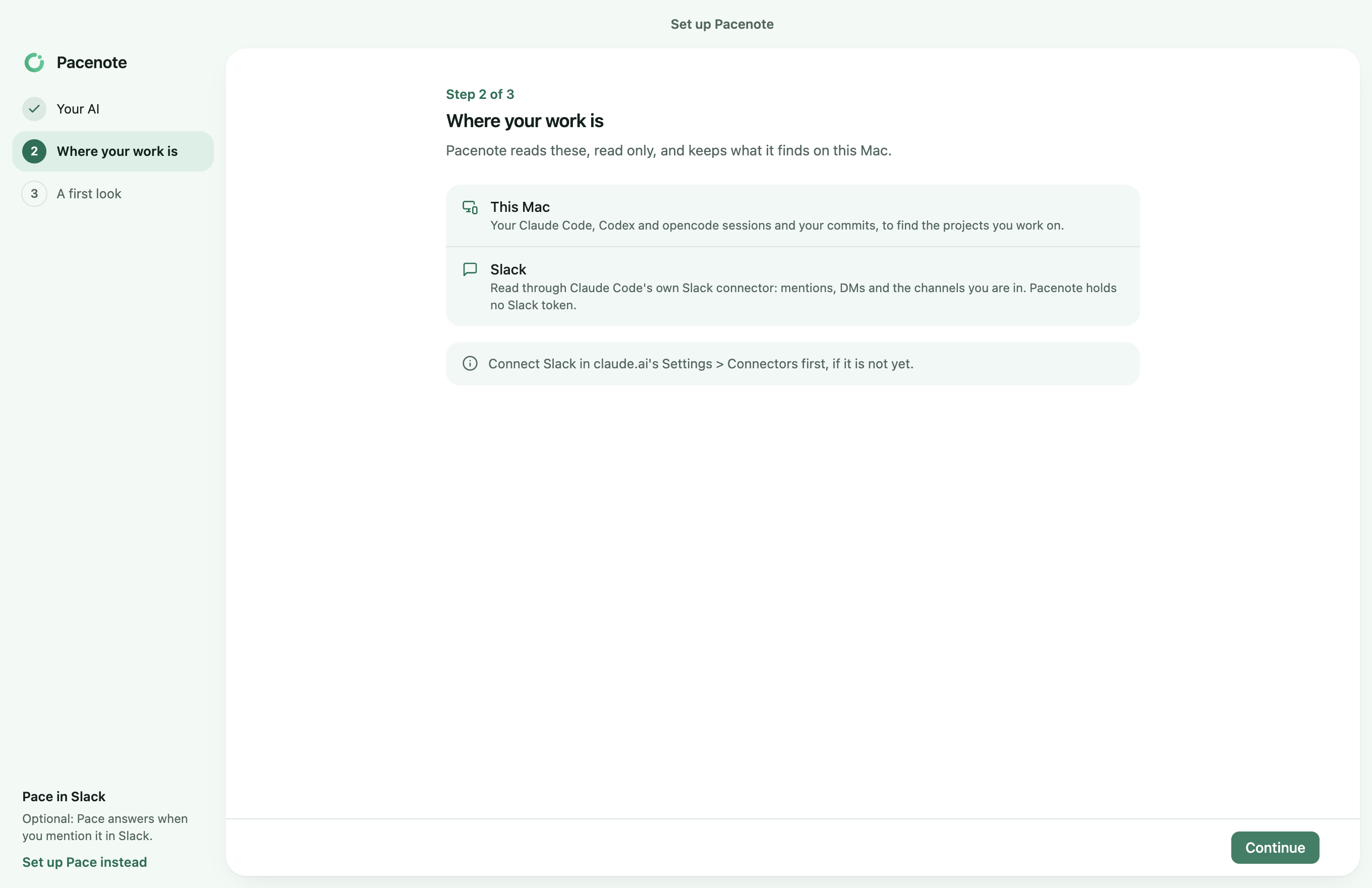
- Your AI. Choose Claude Code or Codex. Pacenote checks that it is on this Mac and signed in.
- Where your work is. The sessions and commits on this Mac, and Slack, read only through your AI tool's own Slack connector. Connect Slack in claude.ai's Settings > Connectors (or ChatGPT's Settings > Apps) if it is not yet.
- A first look. Collect now reads your last 7 days in Slack and finds your projects. Then Todo opens. With no Slack connector yet, it looks at this Mac alone, and Collect now on Todo reads Slack once you connect it.
Pacenote on another of your Macs already? At step 2, choose From your other Mac, click Add a Mac in Settings > Macs on that Mac, and Allow there once both show the same 6 digits. This Mac takes how Todo collects from it and opens on Todo, which stays the same on both. A Mac set up already pairs from its own Settings > Macs, with Pair.
Pace, which answers when you mention it in Slack, stays off until you set it up: Set up Pace instead on the first run, or Set up Pace in Settings > General.
Pace's setup, step by step
Pace's setup has its steps on the left. Each step checks what it needs where it is.
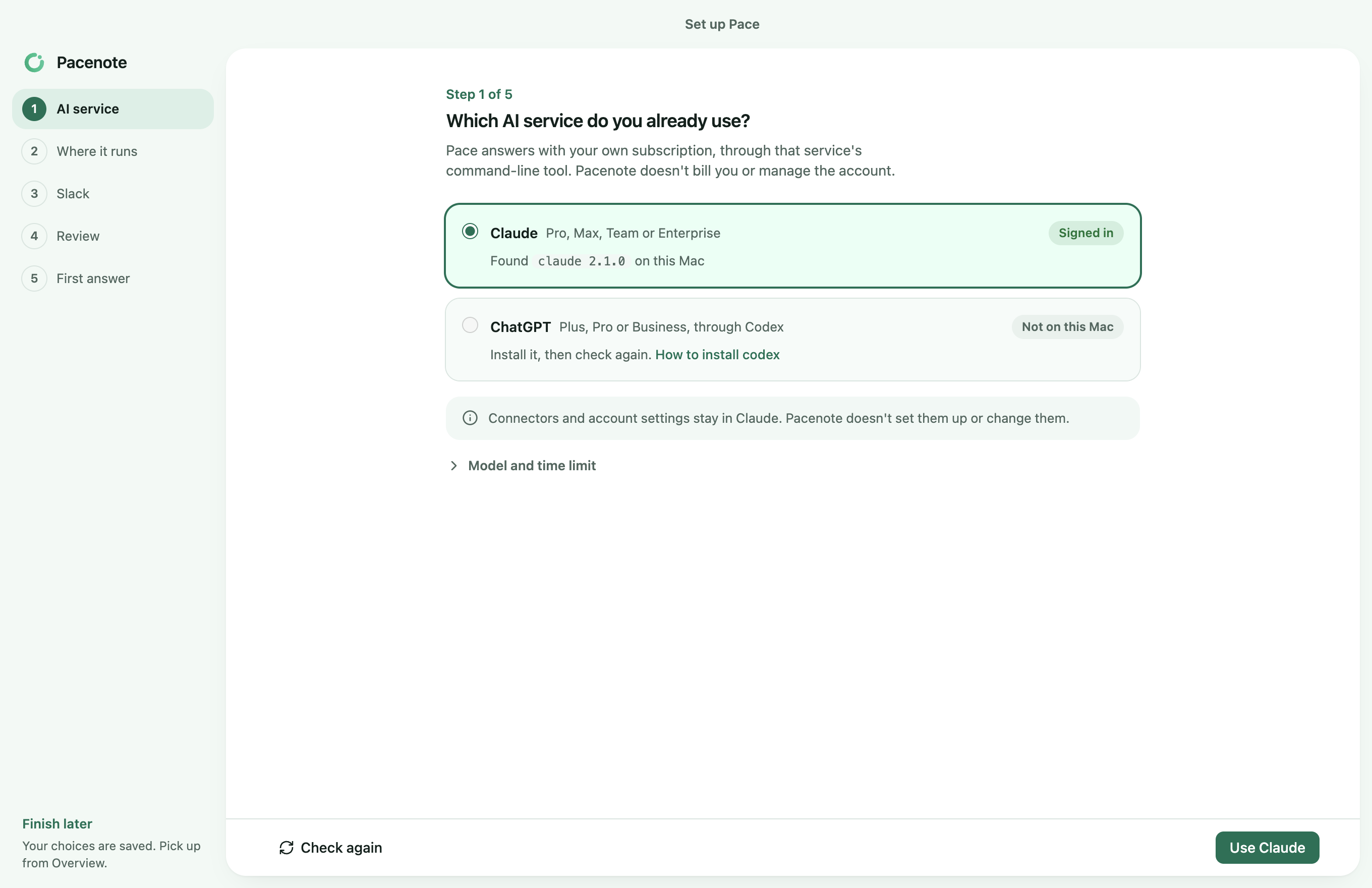
- AI service. Choose Claude Code or Codex. Setup checks that it is on this Mac and signed in.
- Where it runs. The built-in sandbox, a small Linux VM per request that cannot see your files, or directly on this Mac with your own login. Where this Mac runs the sandbox, setup starts preparing it at once; it takes a few minutes.
- Slack. Join your team's hub, or use your own Slack app made from Pacenote's manifest. With Pacenote set up on another of your Macs, you can connect to that one instead. Joining a hub is in Join your team's hub.
- Review. Check what you chose, then start Pace.
- First answer. Mention
@Pacein a public channel it is in. Setup is done when Pace answers you there.
Finish later leaves setup at any step; a card on Overview picks it up again.
Next
- Gather what people ask of you on Todo.
- Change how Pace reaches Slack in Settings > Messengers.