
Guide › By screen
Settings > Messengers
How Pace reaches Slack, through your team's hub or your own Slack app, and who can ask it.
Messengers holds the chat apps Pace answers in, and who can ask there. Changes apply when Pace restarts.
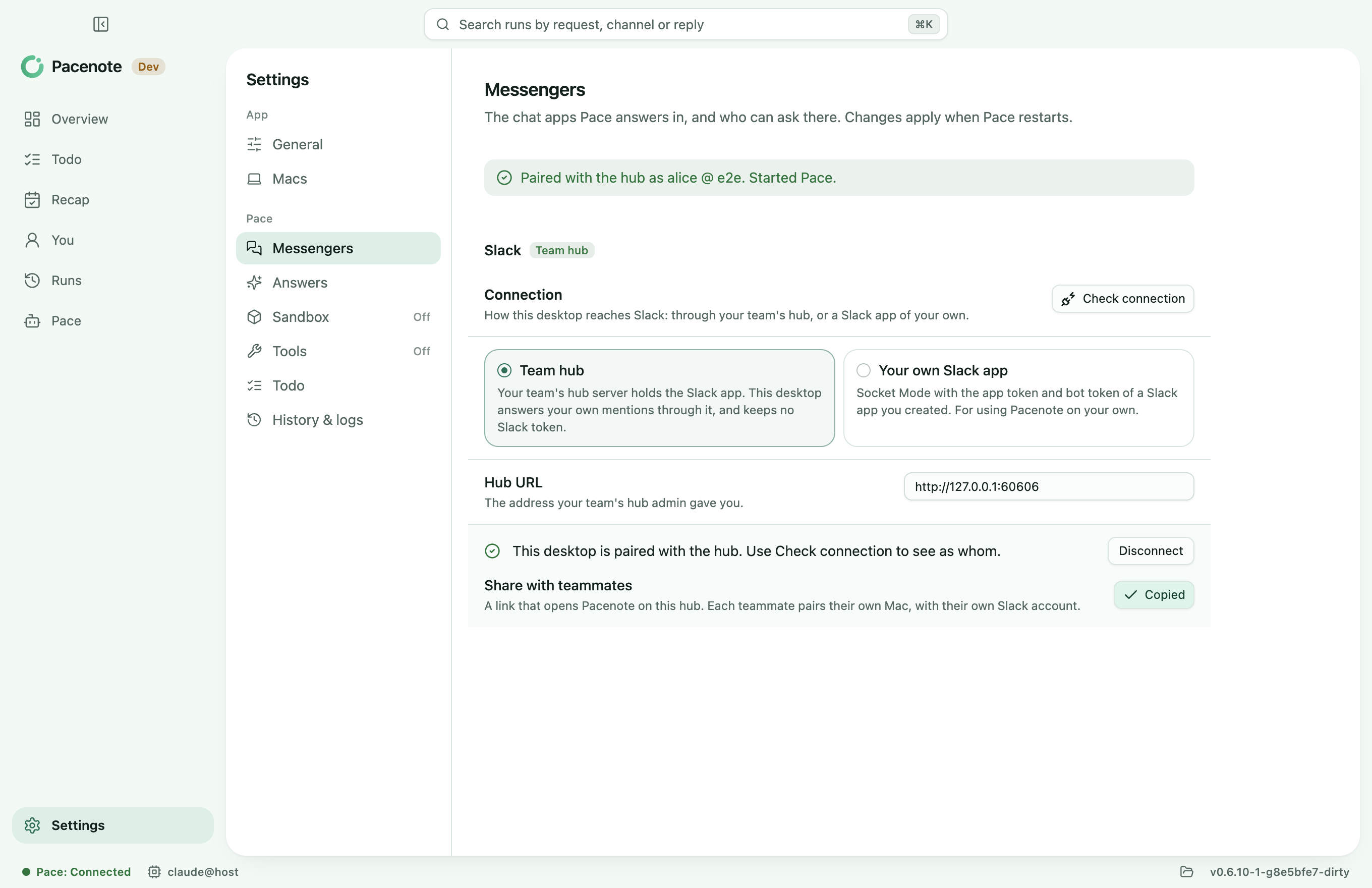
Choose the connection
- Team hub: your team's hub server holds the Slack app. This desktop answers your own mentions through it, and keeps no Slack token.
- Your own Slack app: Socket Mode with the app token and bot token of a Slack app you created, for using Pacenote on your own. Create the Slack app makes it from Pacenote's manifest.
Pair with the hub
- Enter the hub's address under Hub URL. A teammate's share link fills it in.
- Choose Connect, then mention
@Pace connect <code>with the code Pacenote shows, in a channel Pace is in. - Confirm that the Slack account shown is yours.
Check connection shows whether Pace reaches Slack, and as whom. Disconnect unpairs this desktop.
Share with teammates
Once paired, Copy share link copies a link to pacenote.dev that opens Pacenote on this hub, or shows how to install it first. The link holds no secret: each teammate pairs their own Mac with their own Slack account, and nothing changes on their Mac until they connect. The steps for them are in Join your team's hub.
No hub yet?
Open No hub yet? Install one on a Linux server, give the address members will use and who can use it, and copy the command. It runs on a Linux server with Docker and asks for the Slack app's tokens there, so they never leave the server. Once the hub answers, your Pace switches to it. More in Team hub.
Who can ask
Only you, by your Slack member ID. Pace runs with your login on this Mac, so anyone else who mentions it gets a note only they can see.